
Wallpaper
Enhance your devices with our exclusive Deutsche Bank wallpaper design backgrounds. These backgrounds are perfectly suited for iPhones, iPads, and desktop screens.
Download iPhone
Logo with handwritten signature, 'With deep dedication’
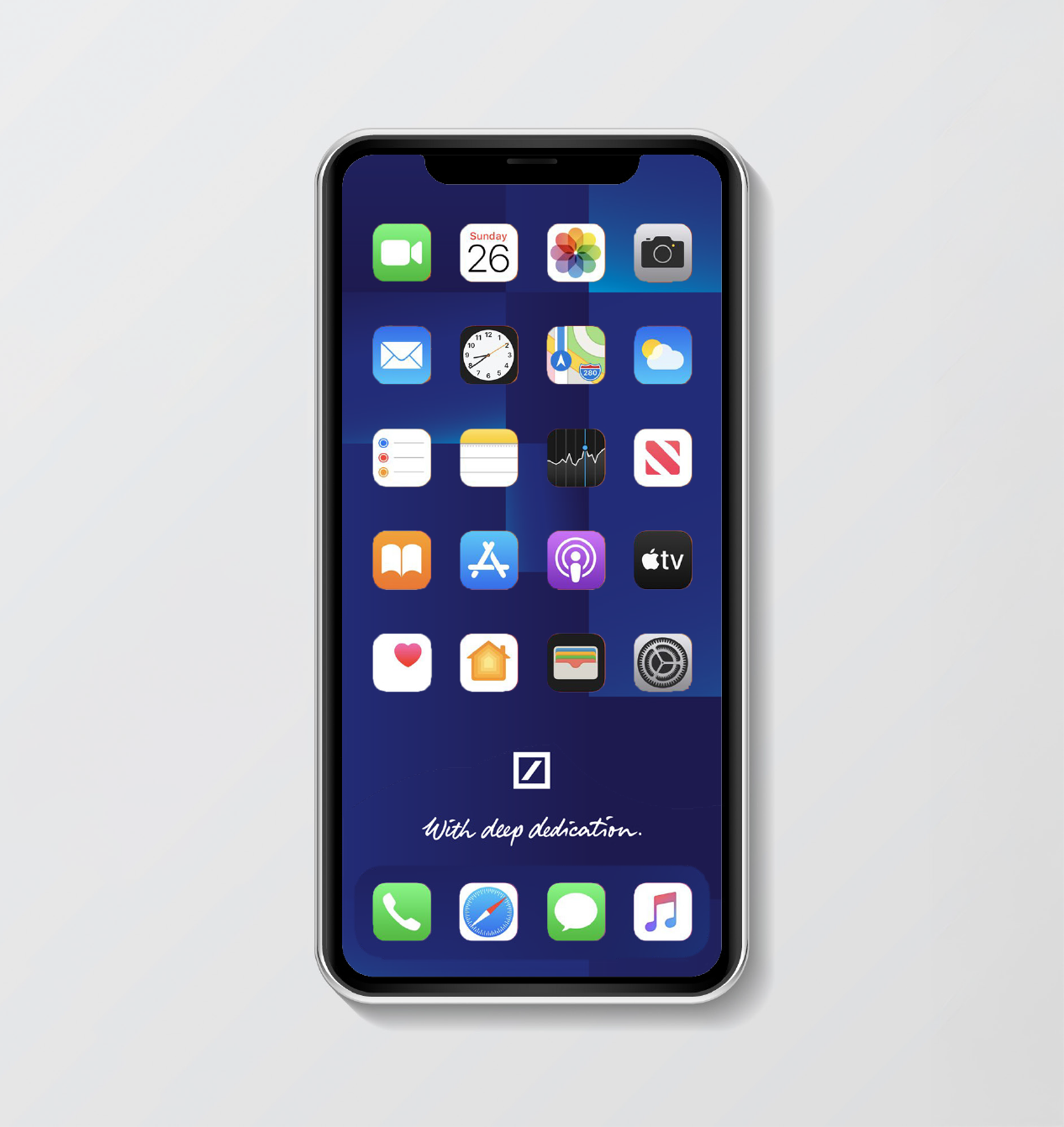 |
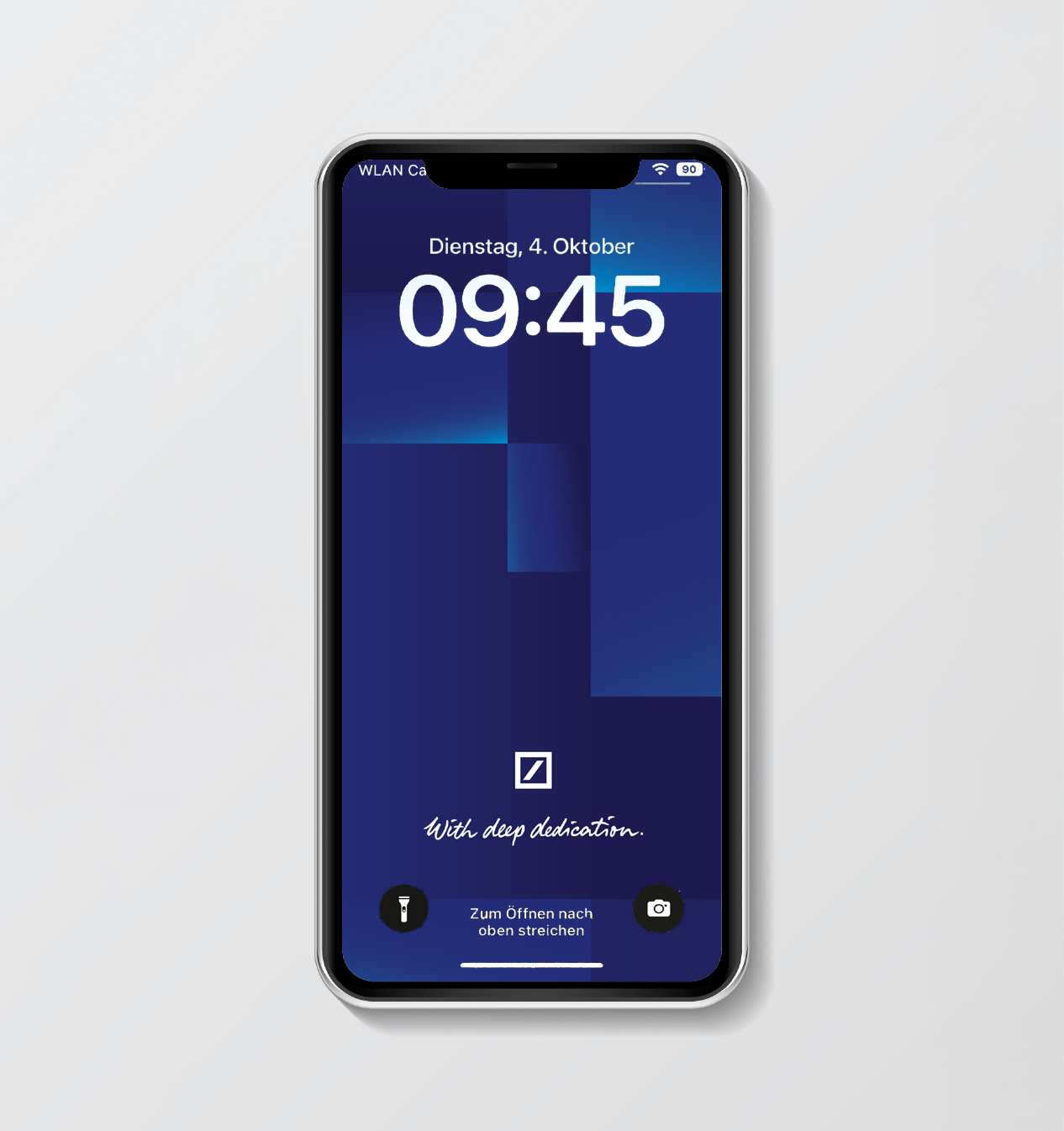 |
Deep Blue logo matrix design with no branding
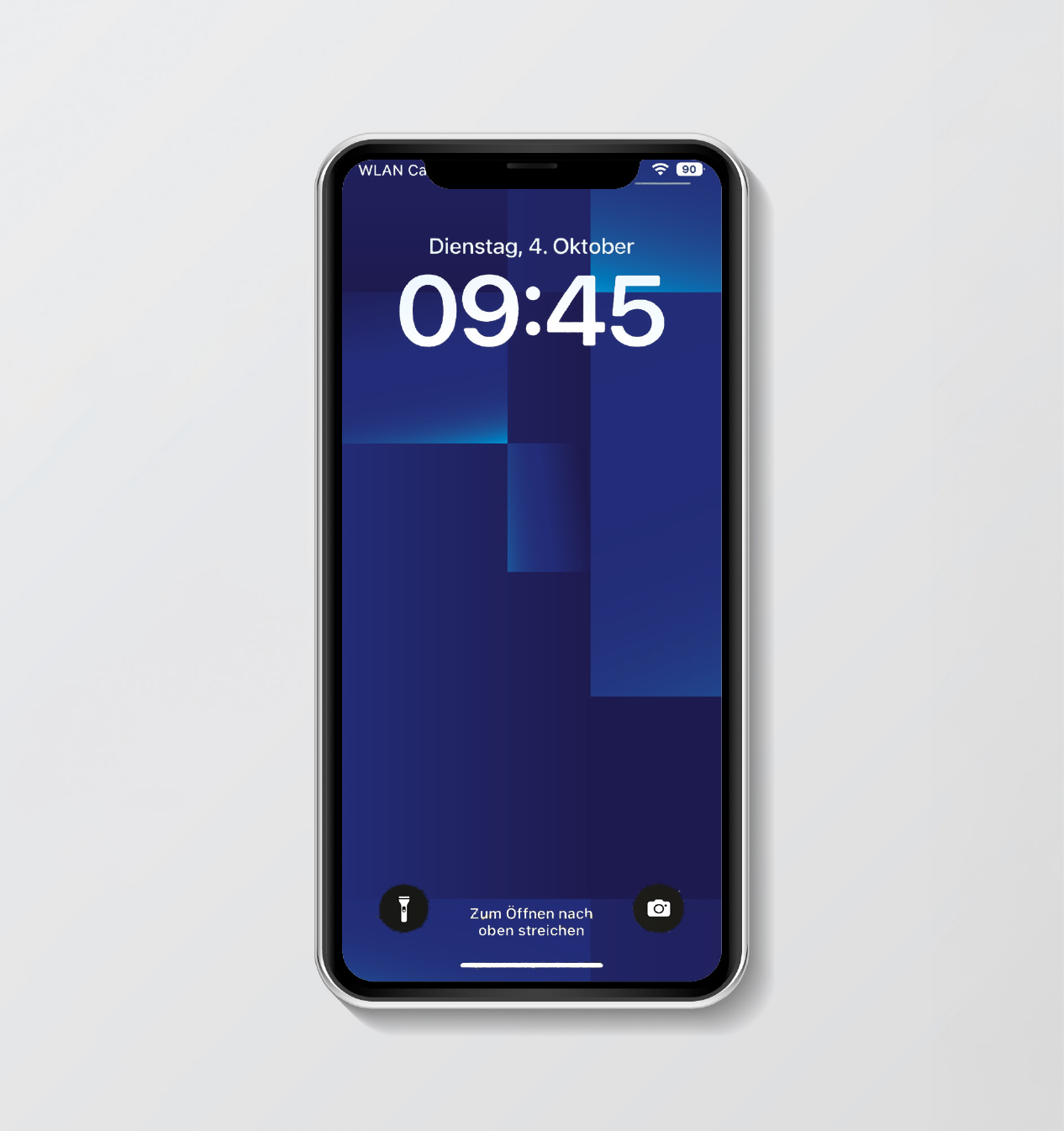 |
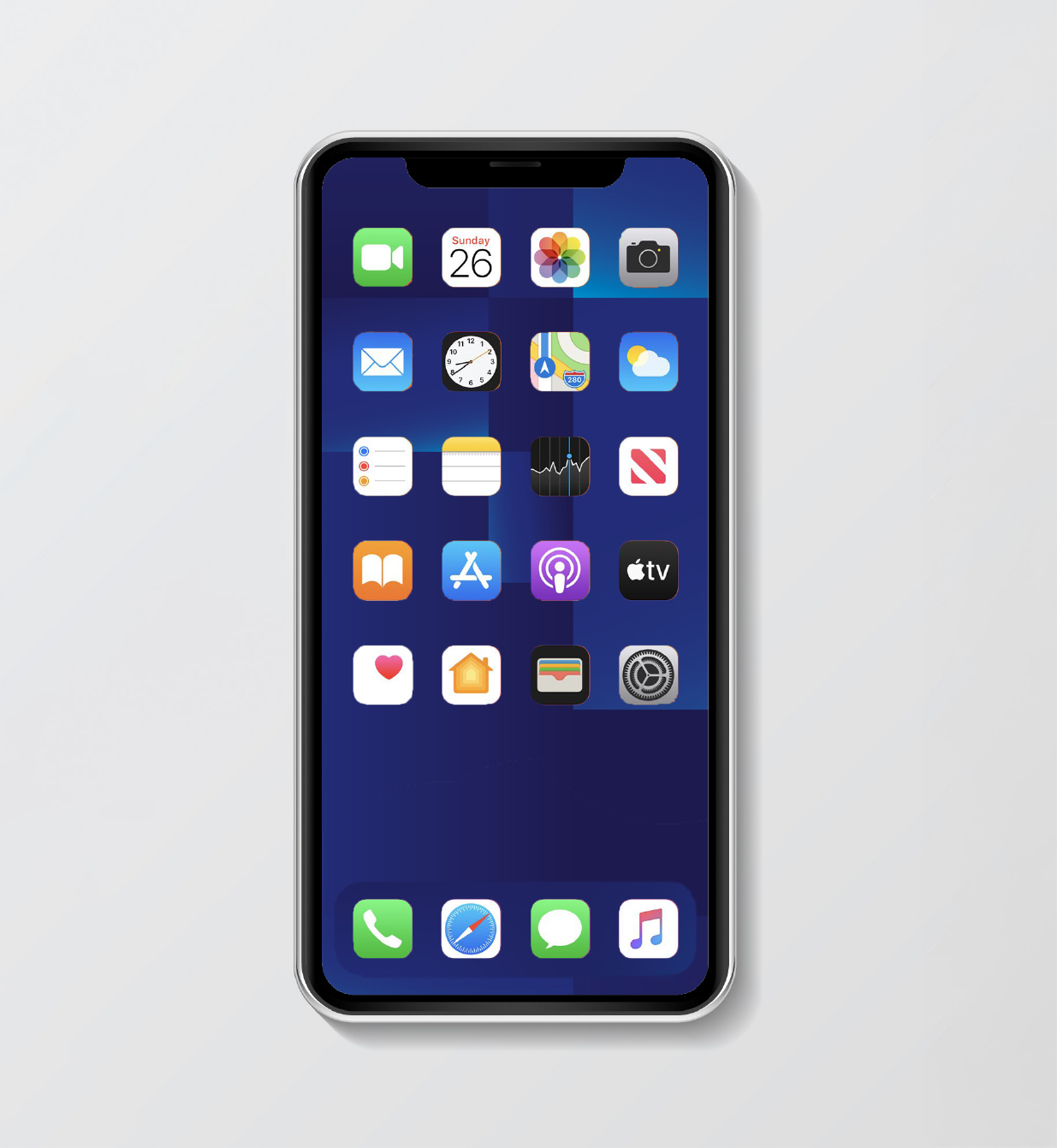 |
Application
- Deutsche Bank wallpapers are available in JPG and PNG formats
- Save the image to your device’s photo gallery or files for easy access
- Set the image as your home screen or lockscreen wallpaper through device settings
- Ensure the wallpaper fits perfectly for iPhone and similar screen dimensions
Download iPad
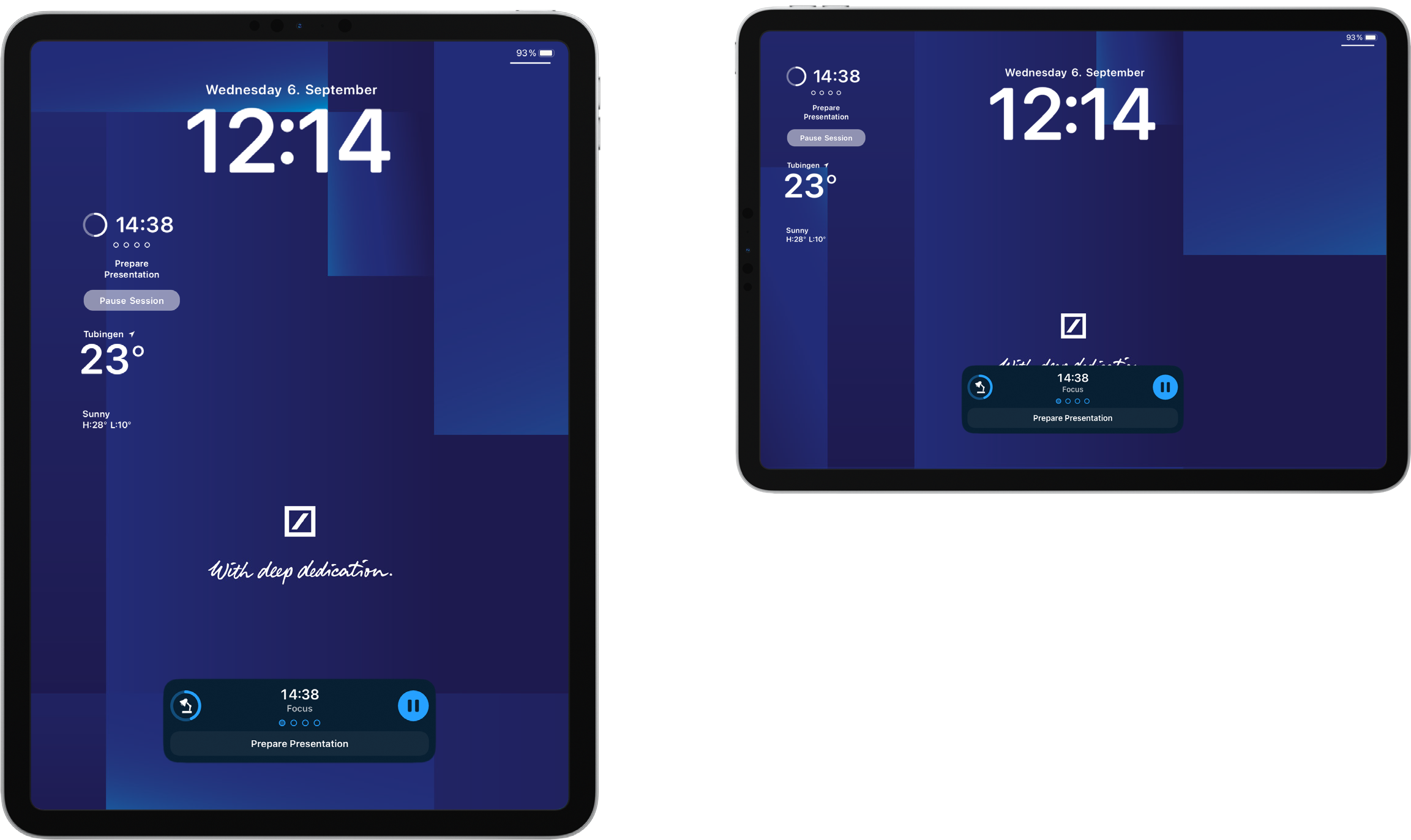
Logo with handwritten signature, 'With deep dedication’
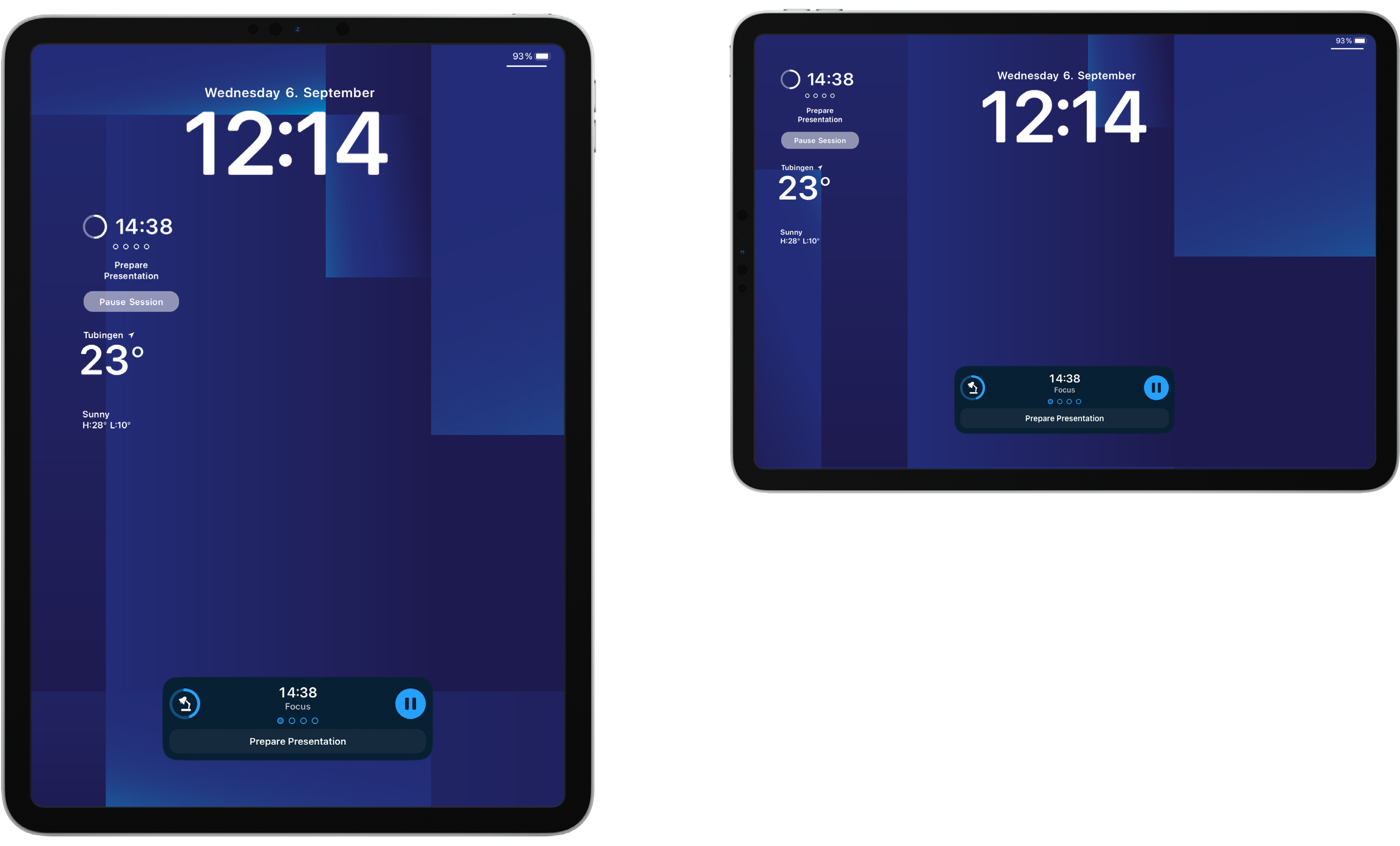
Deep Blue logo matrix design with no branding
Application
- Deutsche Bank wallpapers are available in JPG and PNG formats
- Save the image to your device’s photo gallery or files for easy access
- Go to your iPad's settings, select "Wallpaper," and choose the downloaded image from your photo gallery or files
- Set it as your home screen or lockscreen wallpaper
Desktop and Laptop screens
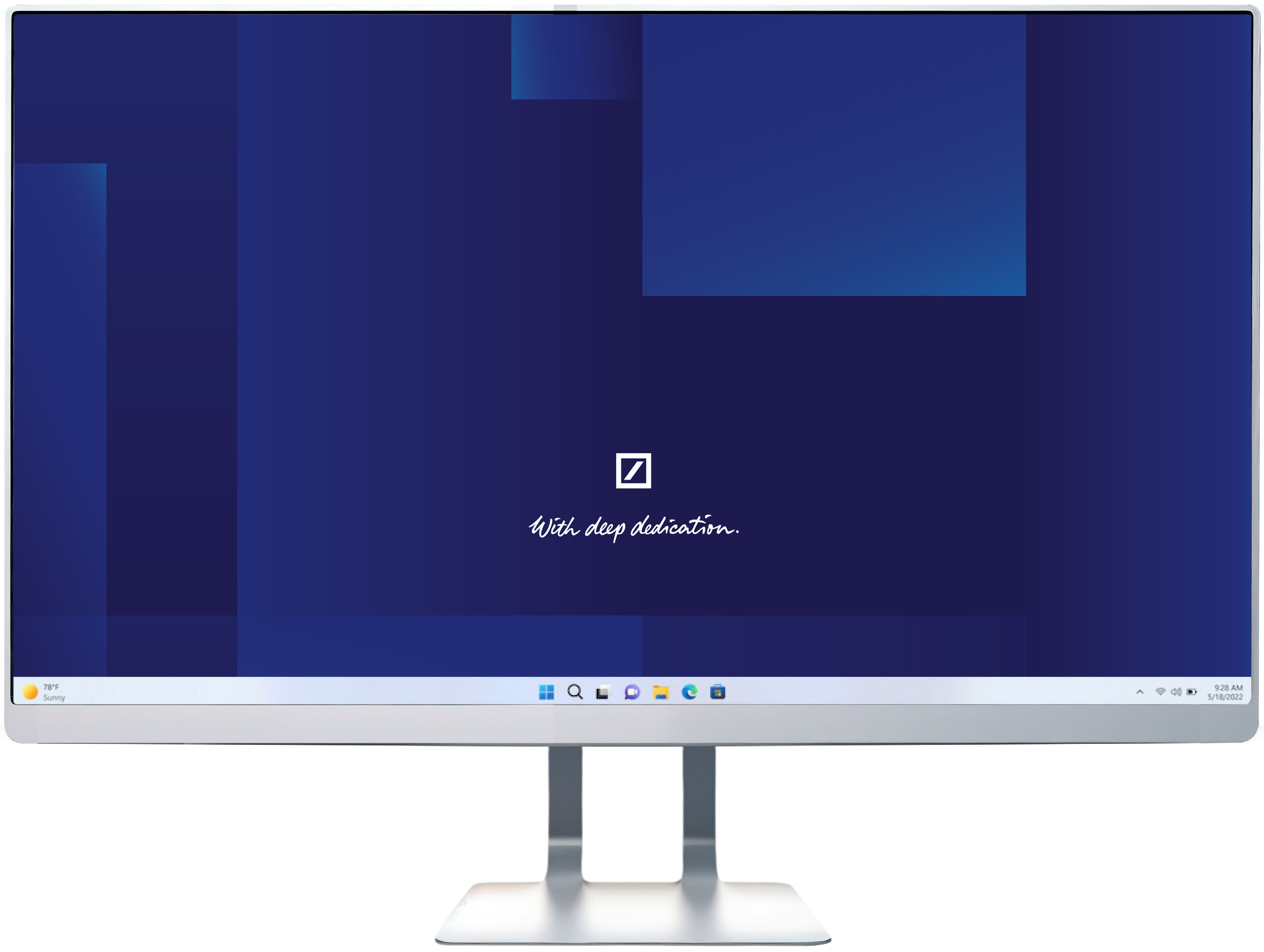
DB Logo with Handwritten Signature: This design features the Deutsche Bank logo along with the handwritten signature, symbolising our deep dedication
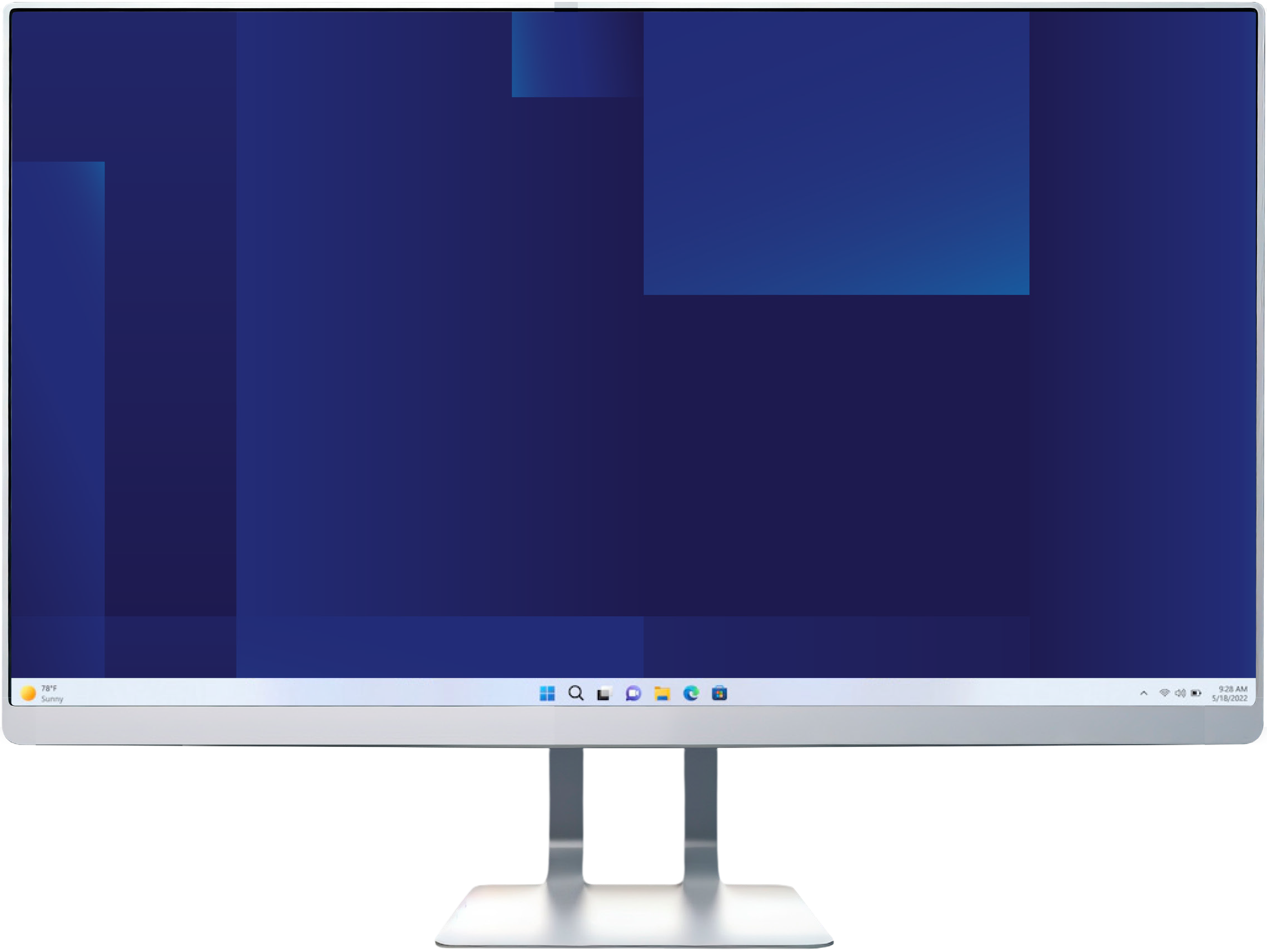
Deep Blue Logo Matrix: A plain design featuring the deep blue logo matrix with no branding
Application
- Download the Deutsche Bank wallpaper asset in the appropriate size for your screen.
- The available sizes are 1920x1080px for standard screens and 3840x2160px for widescreen displays.
- The wallpapers are available in both JPG and PNG formats.
For Desktop and Laptop Users:
- Set as Wallpaper: Right-click on the downloaded image and select "Set as desktop background" or "Set as wallpaper" from the context menu.
- Configure Screensaver: To set the image as your screensaver, go to your computer's display settings, select "Screensaver," and choose the downloaded image.
For Mac Users:
- Set as Wallpaper: Open the "System Preferences" on your Mac, select "Desktop & Screen Saver," and choose the downloaded image from your photo gallery or files. Set it as your desktop wallpaper.
- Configure Screensaver: To set the image as your screensaver, go to the "Screen Saver" tab in "System Preferences," select the downloaded image, and configure the screensaver settings as desired.